User Management
Follow the guide below to manage users in PIMS.
- Sign Into PIMS
- Click On Admin -> Users. You need to have Users permissions in place.
Create New User
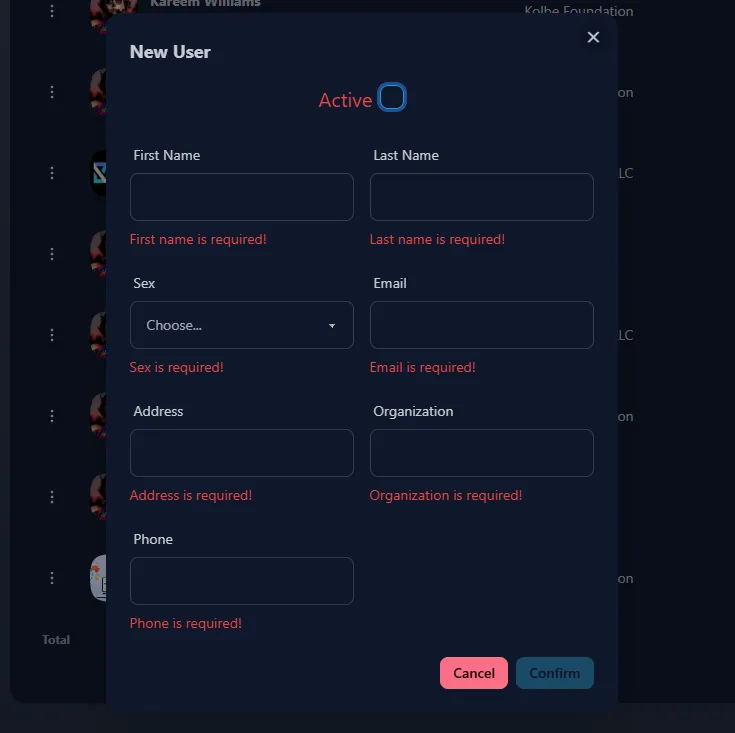
- Scroll to the end of the Users table and click New User.
- Fill out all the required fields and click confirm.
User Profile
-
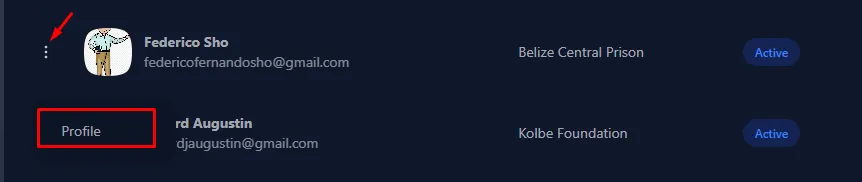
To load the User Profile, click on the icon shown in the image and click Profile.
-
The User Profile will load with additional information about the user. Here we can perform further user management actions such as:
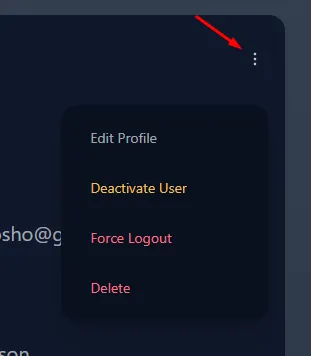
- Edit Profile - Edit profile information
- Deactivate User - Deactivate the user. User will no longer be able to sign into PIMS
- Force Logout - Log the user out of all sessions, forcing them to log in again on their next attempt to access PIMS
- Delete - Delete this user account
-
To add additional Roles or Promote to Admin. Scroll to Active Roles section.

- Promote to Admin - Add all Roles in PIMS to the user.
- Edit -> Select individual Roles to add to the user. A user can have any number of roles. Click Save and the user will automatically have these roles available to their profile. No logout required.
-
Recent activity on the User Profile shows the last 10 activity items by the user. This is a good way to get a quick overview of the users recent history.
Further reading
- Read reviewing activity log in PIMS