Locations
Follow the guide below to manage locations.
- Sign Into PIMS
- Click On Locations. You need to have Locations permissions in place.
View Locations
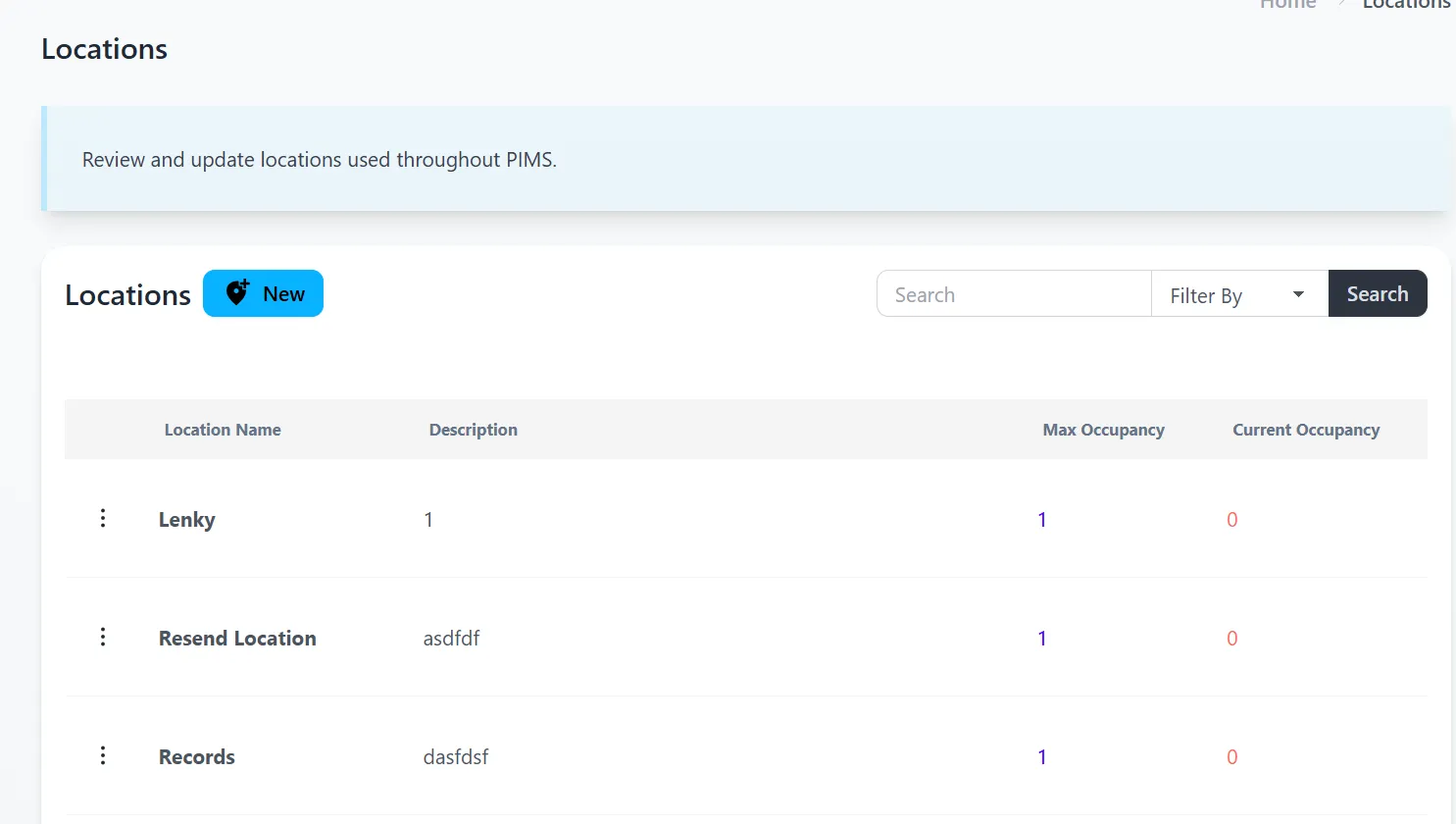
- View locatins provide a general view of each location.
- This includes the location name, the description of the location and it’s max and current occupancy.
Create New Location
-
Click the button New beside the Location heading label.
-
A dialog will become available for you to create the Location.
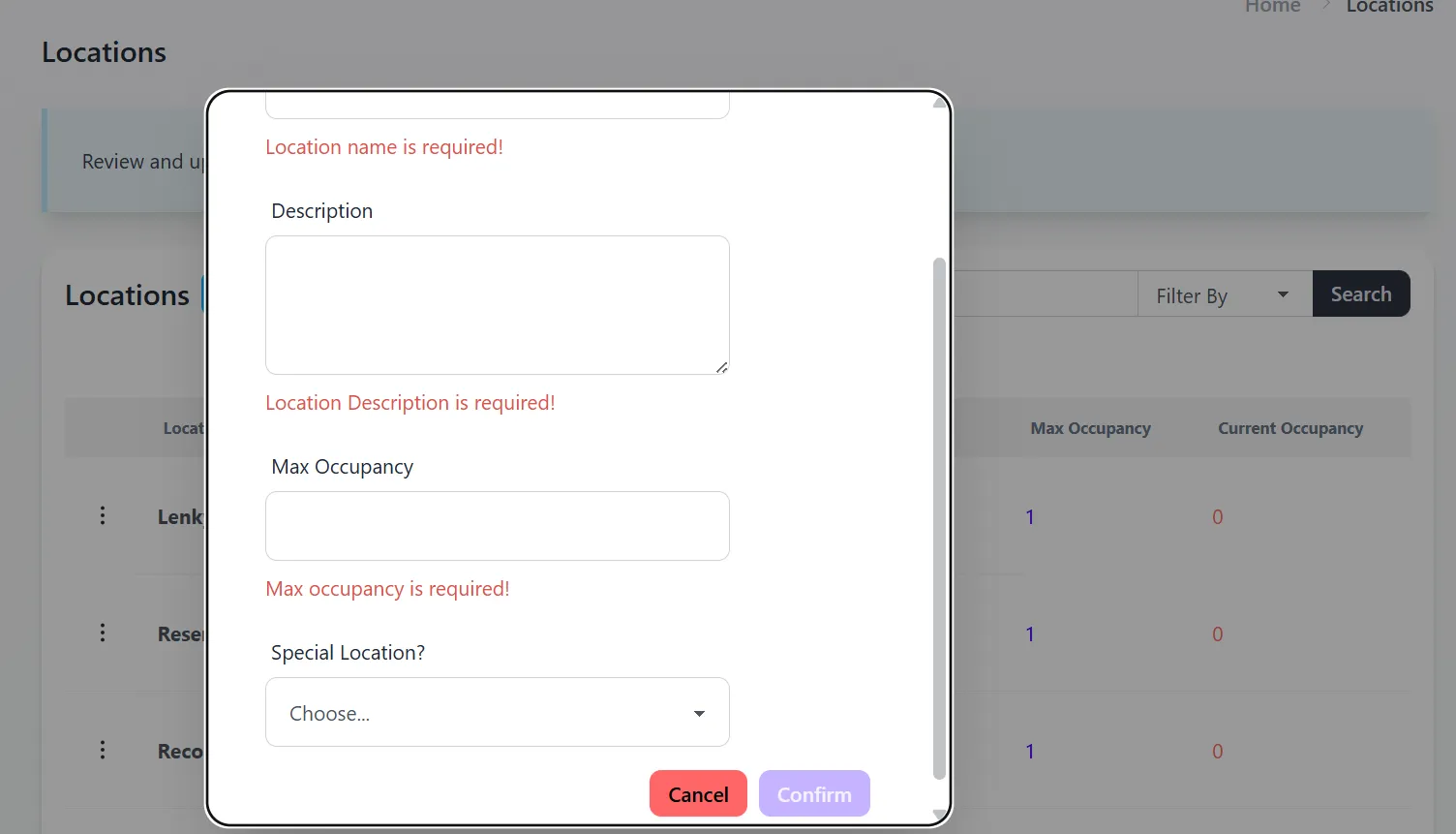
- All fields except Special location is required.
If the location is a special location such as Holding Cell, Medical, etc, select the matching option from the dropdown list. This will allow the system to automatically handle these special locations.
-
Click Confirm when done. The new location will be created if there are no errors.
Edit Location
- Select Edit Location on any row in the View Locations table.
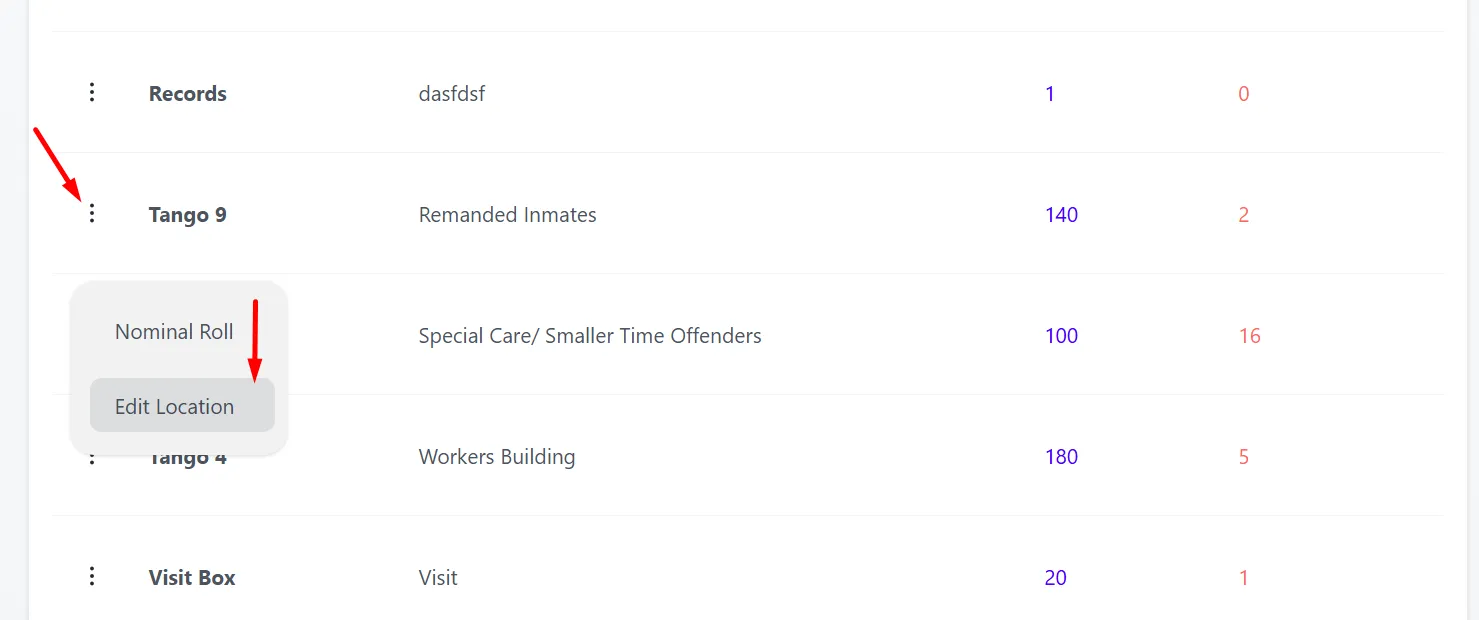
- The location will now be visible with buttons for it to be edited.
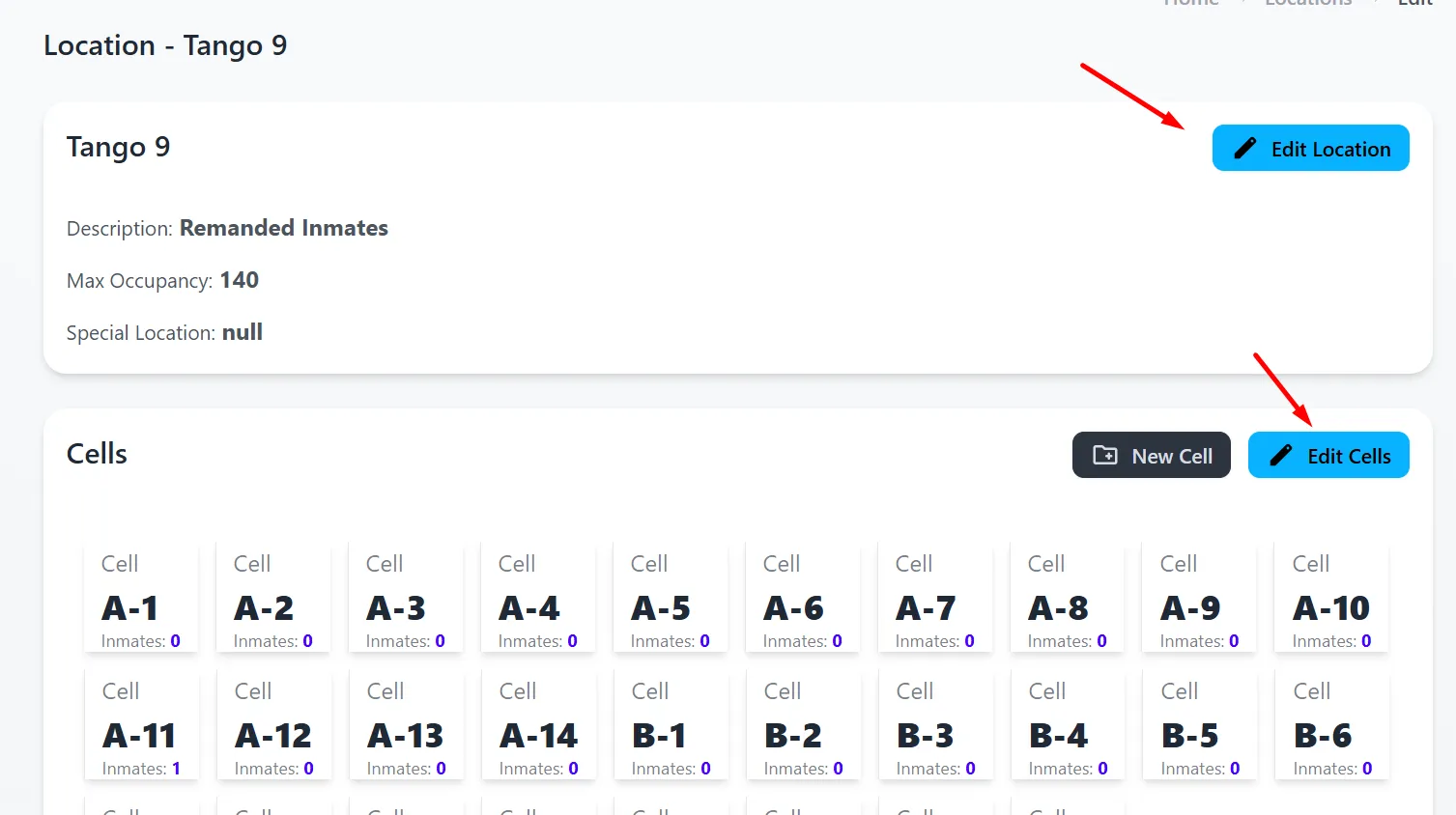
- All fields that were available when creating the location is also available for editing the location.
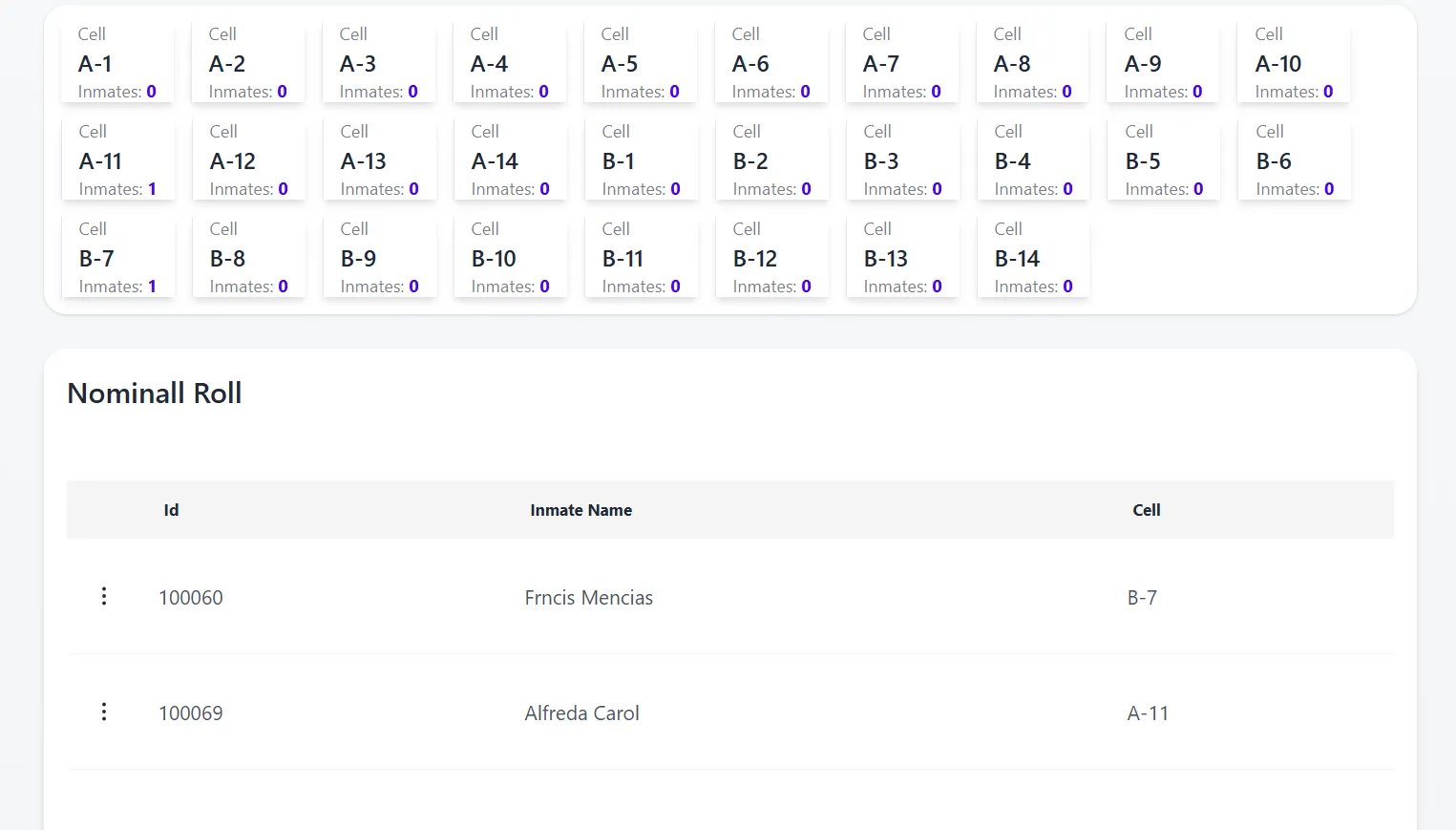
- Each location consists of Cells. You can add as many cell as needed to a location. Inmates are assigned to Cells through Transits. A cell can be renamed at any time. Deleting a cell is only possible if there’s no inmates in the cell.
Location Nominal Roll
- Select Nominal Roll on any row in the View Locations table.
- A Nominal Roll view will be loaded that shows inmate details in table format.